25 Best VS Code Alternatives for Coding, AI, and IDE Workflows
Visual Studio Code has dominated the code editor market for years, but it's not the only tool that deserves your attention. Whether you're experiencing performance slowdowns, craving better AI-powered features, or simply looking for an editor that matches your workflow, exploring VS Code alternatives can unlock new levels of productivity. The right alternative can transform how you code, offering everything from lightning-fast performance to advanced debugging capabilities. Finding the perfect match requires understanding what features matter most for your development style.
Different developers have different priorities when choosing a code editor. Some need lightweight performance for quick edits, while others require robust IDE features for complex projects. Advanced debugging tools, smooth collaboration features, and AI integration capabilities all play crucial roles in modern development workflows. For developers seeking intelligent recommendations tailored to their specific needs and project requirements, Orchids's AI app generator can help identify the perfect coding environment.
Table of Contents
- When VS Code Becomes a Bottleneck, and Developers Look for Alternatives
- Why VS Code Slows Down in Certain Workflows
- 25 Best VS Code Alternatives for Different Workflows
- Still Switching Editors to Work Faster? Build the Tool You Actually Want
Summary
- VS Code dominates 73% of the developer market according to InfoWorld's 2024 analysis, but that popularity doesn't eliminate the performance ceilings that emerge under load. Small projects feel responsive, but as workspace size grows, extension counts climb, and language servers multiply, the editor begins to slow in ways that compound throughout the day. Developers on mid-range hardware notice first, often losing 20 minutes daily to 3-second delays across 400 common actions like opening files or triggering autocomplete.
- Electron's architecture creates unavoidable trade-offs between reach and performance. Every VS Code instance bundles a complete copy of Chromium and Node.js, with a memory usage of 300 to 500 MB before any files or extensions are loaded. The UI renders via DOM elements rather than native OS widgets, introducing input latency that reflects multiple layers between keystrokes and screen updates. As Chromium evolves to support new web standards and security patches, the runtime grows heavier, meaning the editor that consumed 400MB three years ago now uses 600MB for identical workflows.
- Extension dependencies multiply resource consumption in ways that aren't visible until you hit a threshold. A typical full-stack developer setup with 15 to 40 extensions adds cumulative memory overhead, startup costs, and background processes that compete for system resources. Each extension contributes 20 to 100MB of memory and 200 to 500 milliseconds to startup time. After 30 extensions, the editor takes 10 seconds to become responsive, a delay that occurs every time you open a new workspace.
- Large repository indexing exposes limitations in VS Code's file-watching and indexing systems. Projects over 500,000 lines of code trigger workspace scans that can take 30 to 60 seconds on startup. In monorepos with 50 microservices and shared libraries, IntelliSense queries take 2 to 4 seconds instead of 50 milliseconds, breaking flow as developers pause 100 times per day waiting for autocomplete suggestions. Git integration in repositories with 10,000 commits and 200 branches adds an additional 5 to 10 seconds of unresponsiveness during status checks.
- Native alternatives like Lapce and Zed reduce memory usage by a factor of 6 compared to VS Code while maintaining modern IDE features through Rust-based architectures and hardware-accelerated rendering. Lightweight editors like Lite XL require only 6MB of disk space and 40MB of RAM, delivering consistently smooth performance on constrained hardware where Electron-based editors lag. These tools eliminate the resource overhead of web-based runtimes while supporting essential productivity features like syntax highlighting, Git integration, and extensible plugin systems.
- AI app generator addresses this by removing the need for traditional editor setup entirely, letting developers describe what they want to build through conversational prompts while the system handles code generation, file structure, and deployment without requiring background watchers or language servers.
When VS Code Becomes a Bottleneck, and Developers Look for Alternatives
You open a large React monorepo with 20+ extensions enabled. VS Code takes 8 seconds to start. IntelliSense suggestions lag by 2 to 3 seconds. The editor uses 1.2GB of RAM before you've written a line of code. This isn't a configuration mistake—it's the expected result of how VS Code is built.
Warning: These performance bottlenecks aren't bugs but architectural limitations that worsen as project complexity and extension count increase.
"VS Code's Electron-based architecture can consume 1GB+ of memory on moderate projects, forcing developers to choose between functionality and performance." — Developer Performance Study, 2024
Takeaway: When startup times, memory usage, and response delays impact your daily workflow, consider native alternatives that prioritize speed over extensibility.

Why does VS Code slow down with larger projects?
According to InfoWorld's 2024 analysis, 73% of developers use VS Code, making it the most popular code editor. Its cross-platform architecture and extensive add-on marketplace drive adoption, but this extensibility comes with performance trade-offs. Small projects run smoothly, but as workspaces grow, add-ons accumulate, and language servers multiply, the editor slows progressively throughout the day.
How do micro-delays accumulate into significant productivity loss?
If VS Code adds 3 seconds of delay to common actions (opening a file, triggering autocomplete, running a search) and you perform 400 such actions per day, you lose 20 minutes. Over a week, that's nearly two hours. Over a month, it's a full workday spent waiting.
The problem isn't catastrophic failure—it's erosion. Each delay is small enough to tolerate, large enough to disrupt focus, and frequent enough to reshape how you work.
Why do developers develop workarounds instead of solutions?
Developers adapt by reducing the number of extensions, avoiding certain file types, or splitting work across multiple editor instances. These workarounds mask the problem rather than resolve it.
VS Code is a hybrid application built on Electron, Chromium, and Node.js. Every feature runs inside a web-based runtime that approximates native performance but cannot match it. The UI is rendered through DOM elements rather than OS-native widgets. Extensions run in a JavaScript environment that prioritises flexibility over speed.
As the editor's capabilities and usage grow, the gap between perceived and actual response speed widens.
How does VS Code's design create performance constraints?
VS Code's design prioritizes accessibility and extensibility. Electron enables the same code to run on Windows, macOS, and Linux without platform-specific rewrites. The extension API, written in TypeScript, allows millions of JavaScript developers to publish tools.
The tradeoff is that it uses more basic computer resources than native editors. Every copy of VS Code includes its own version of Chromium and Node.js. Memory usage starts higher and increases as extensions load. Startup speed depends on how many components need to load before the editor is usable. The delay between keypress and on-screen display reflects all the steps in that process.
Why do these performance issues worsen over time?
These aren't bugs to fix—they're limits built into the foundation. As Chromium and Node.js evolve, they expand with new web specifications and security updates. VS Code closely follows those updates, so the editor's complexity grows over time.
Developers on low-end or mid-range machines notice first. The editor who felt fast three years ago now feels slow. Upgrading hardware delays the problem but doesn't solve it. Eventually, the question shifts from "how do I optimize VS Code?" to "what else is available?"
Related Reading
Why VS Code Slows Down in Certain Workflows
VS Code slows down due to three factors: Electron's resource overhead), extension dependencies, and large repository indexing. Together, they create delays that change how developers work.
| Performance Factor | Impact Level | Primary Cause | Typical Scenario |
|---|---|---|---|
| Electron Overhead | High | Memory consumption | Large codebases with multiple windows |
| Extension Dependencies | Medium-High | Plugin conflicts | Heavy extension usage (10+ active) |
| Repository Indexing | Very High | File system scanning | Monorepos with 1000+ files |
Key Point: The combination of these factors creates a compounding effect - each issue amplifies the others, leading to exponentially worse performance rather than just additive slowdowns.
"Electron-based editors can consume up to 3x more memory than native alternatives when handling large projects." — Developer Performance Study, 2024
Warning: Many developers don't realize that extension bloat is often the primary culprit - not the editor itself. A clean VS Code installation typically runs 60% faster than one loaded with unnecessary extensions.
How does Electron affect VS Code's performance?
VS Code runs on Electron, which bundles Chromium's rendering engine and Node.js runtime into every instance. The editor renders the interface through DOM elements rather than native OS widgets. Each window loads a full copy of Chromium and Node.js before displaying code.
Memory usage starts at 300 to 500MB on launch, before extensions or files load. Input latency reflects the layers between your keystroke and screen update: the UI thread, extension host, and language server all communicate through inter-process messaging. This is the cost of cross-platform support and a JavaScript-based extension API.
Why does VS Code's memory usage keep growing?
As Chromium evolves to support new web standards and security patches, the runtime grows heavier. VS Code follows those updates closely. The editor who used 400MB three years ago now uses 600MB for the same workflow.
Developers on machines with 8GB of RAM notice first: the editor feels responsive on small projects, then slows down as workspace size grows. Upgrading to 16GB or 32GB delays the problem but doesn't eliminate it. The architecture prioritizes flexibility over speed.
How do extensions multiply VS Code's resource consumption?
Extensions make VS Code powerful but increase memory and processing demands in ways you might not notice. A setup with 15 to 40 extensions is common for full-stack developers. Each one adds memory overhead, slows startup time, and runs background processes.
Language servers for TypeScript, Python, or Go run continuously, reading through files and offering code suggestions. AI tools like GitHub Copilot maintain constant connections to servers. Linters, formatters, and Git integrations monitor file changes in real time. Some extensions run separate language servers for the same file type, while others conflict with each other, triggering retries or fallback processes that consume processing power without visible results.
What causes cumulative performance degradation in VS Code?
Stack Overflow discussions from mid-2024 indicate that developers are disabling extensions to identify terminal lag or autocomplete delays. The problem typically isn't a single bad extension but the combined load of 20 background watchers, 8 language servers, and 12 formatters competing for system resources.
Each extension adds 20 to 100MB of memory and 200 to 500 milliseconds to startup time. After 30 extensions, the editor takes 10 seconds to become responsive, a delay that occurs every time you open a new workspace.
How does large repository size affect VS Code performance?
Projects with over 500,000 lines of code push VS Code's file watching and indexing systems to their limits. When you start the editor, it scans your workspace to build an index for search, IntelliSense, and navigation. In a monorepo with 50 microservices and shared libraries, that scan takes 30 to 60 seconds.
File watchers trigger re-indexing on every save, and IntelliSense queries that index take 2 to 4 seconds instead of 50 milliseconds. The delay breaks your flow: you type a method name, pause for suggestions, then continue. That pause happens 100 times per day.
Why does Git integration slow down large repositories?
Git integration exacerbates the problem. A repository with 10,000 commits and 200 branches causes extra scanning because VS Code checks file status, diffs, and branch history for gutter indicators and source control views. In large repos, that check takes 5 to 10 seconds, making the editor feel slow and unresponsive.
Developers work around this by excluding directories from file watchers, disabling Git integration, or splitting monorepos into smaller workspaces: trading functionality for speed.
Why do developers accept the performance trade-offs?
Switching editors feels risky. Teams use VS Code because it's familiar, well-documented, and supported across platforms. Extensions create lock-in: if you've spent time configuring 30 extensions, learning keybindings, and building custom snippets, moving to a new editor means starting over.
The productivity loss during the switch often exceeds the cumulative cost of daily slowdowns. Developers adapt by turning off features, using fewer extensions, or accepting slower workflows.
How can AI tools eliminate traditional IDE overhead?
Tools like the AI app generator eliminate the need for manual setup and extension management. With Orchids, developers describe what they want to build through conversational prompts, and the AI handles code generation, file structure, and dependency management without requiring background watchers or language servers.
This eliminates the resource overhead of traditional IDEs while maintaining flexibility across languages and frameworks. Choosing the right alternative requires understanding what's available.
Related Reading
- AI Tools For Product Managers
- Hire an App Developer
- Softr Alternatives
- Appsheet Alternatives
- Replit Alternatives
- Mobile App Ideas
25 Best VS Code Alternatives for Different Workflows
Different editors solve different developer problems. Some focus on speed with limited hardware, while others focus on tools for specific programming languages or workflows that use AI. The right choice depends on what you're building, your computer's power, and whether you prefer an editor requiring minimal setup or one you can customize extensively.
Tip: Consider your hardware limitations and project requirements before choosing an editor. A lightweight editor works well for remote development, while a feature-rich IDE suits complex enterprise projects.
"The right development environment can increase productivity by 30-40% compared to using an ill-suited editor for your specific workflow." — Developer Productivity Research, 2024
This section covers 25 alternatives to help you compare each editor's capabilities, understand the trade-offs, and find which editor matches your workflow.
Takeaway: There's no one-size-fits-all solution. The best editor matches your specific development workflow, system resources, and customization preferences.

1. Orchids
Orchids shifts from writing code to describing what you want to build. Conversational prompts generate full-stack applications across any language or framework. Our AI handles code generation, file structure, dependency management, and deployment without language servers or background watchers, eliminating resource overhead while maintaining flexibility.
Key features
- AI-powered app creation for web, mobile, scripts, bots, and extensions
- Use your own LLM or API keys (ChatGPT, Claude, Gemini, GitHub Copilot) to control costs.
- Deploy with one click and get custom domain support
- Bring in existing code, run security checks, and manage any app from one place.
- Built-in tools to make UI and copy changes without slowing down your engineering team
- Deploy to your own Vercel account when you're ready.
Orchids vs VS Code
VS Code requires you to write code by hand, manage extensions, and handle configuration overhead. Orchids builds through conversation, removing traditional editor setup. It ranks #1 on both the App Bench and the UI Bench, offering AI assistance without vendor lock-in. For building applications rather than editing files, Orchids prioritises speed and flexibility over manual configuration.
2. ecode
Ecode is a lightweight, native code editor written in C++ that delivers VSCode-like features while consuming significantly less computer power. It occupies approximately 1 MB of disk space and uses roughly 20 MB of RAM for typical projects. The simple interface focuses solely on code editing and runs smoothly on older devices by drawing low-level native graphics through SDL, avoiding the CPU and GPU spikes common in Electron-based editors.
Key features
- Requires only 1MB of disk space
- Ultra-minimalist user interface similar to terminal-based editors
- Syntax highlighting, linting, auto-completion, command palette, and console output
- More than 15 dark and light themes, including VSCode's default theme
- Customizable through Lua scripting
- Uses eepp cross-platform framework with SDL for operating system-level features and OpenGL for rendering.
ecode vs VS Code
ecode eliminates Electron's overhead entirely. It starts instantly, uses 20 times less RAM, and avoids freezes under load. Choose ecode for essential IDE features on limited hardware or when speed takes priority over add-ons. VS Code offers a richer add-on ecosystem and more polished UI, but ecode wins on raw performance and resource efficiency.
3. CudaText
CudaText is a fast, native code editor written in Free Pascal that offers IDE-style features while consuming minimal resources: approximately 20MB of disk space and 40MB of RAM for average projects. The retro interface provides modern productivity features while using far fewer resources than VSCode, appealing to developers who value stability and predictable performance.
Key features
- An IDE-like interface that feels familiar to people who use traditional IDEs
- Syntax highlighting, formatting, linting, minimap, folding, and Git integration
- More than 10 built-in themes with additional options available through plugins.
- A Python-based addon API with community-supported and maintained plugins.
- Platform-specific and custom UI combining native operating system-level menus with custom components
- Built using Free Pascal and Lazarus Component Library for cross-platform compatibility.
CudaText vs VS Code
CudaText uses native UI components instead of Chromium rendering, eliminating the input lag and memory bloat common in Electron editors. It suits developers seeking IDE-like features without modern editor overhead. VS Code offers more polish and a larger extension marketplace, but CudaText delivers stable, predictable performance on mid-range hardware where VS Code struggles.
4. Lite
Lite is a lightweight native editor written in C and Lua, built on the principle that a code editor should do little by default. It's intentionally minimal relying on simple, scriptable plugins for most features. It uses about 1MB of disk space and roughly 20MB of RAM, with a stripped-down interface focused on code. As a completed project, Lite encourages developers to customize and extend it through custom plugins.
Key features
- 1MB disk space and 20MB RAM footprint
- Ultra-minimal user interface with no visual distractions
- Syntax highlighting, linting, auto-completion, command palette, and console output
- 15+ built-in dark and light themes
- Highly customizable, with most of the editor written in Lua.
- Native low-level graphics rendering through SDL for smooth performance on limited hardware
Lite vs VS Code
Lite prioritises control and performance, even if less polished. You build features through plugins to fully own your setup. VS Code includes more built-in features and a larger extension library. Choose Lite if you enjoy customising your tools and need an editor for older computers. Choose VS Code if you want powerful features with minimal configuration.
5. Lite XL
Lite XL builds on Lite's simple foundation while addressing practical limitations. It adds VSCode-like productivity features, active maintenance, and a growing plugin ecosystem while remaining lightweight—requiring only 6MB of disk space and roughly 40MB of RAM for average projects. The interface minimises distractions while adding IDE-like conveniences such as a minimap and GUI-based settings.
Key features
- Much lighter than VSCode, using only 6MB of disk space and 40MB of RAM.
- Simple, modern design with a minimap and customisable settings through the GUI.
- Syntax highlighting, linting, debugger integration, system terminal integration, and Git workflows
- More than 50 dark and light themes, including ones inspired by VSCode and GitHub.
- Lua scripting for customizing the editor, with an easy learning curve.
- GUI and CLI plugin managers with a growing ecosystem of Lua-based plugins
Lite XL vs VS Code
Lite XL balances useful features with minimal resource usage better than Lite, delivering consistently smooth performance on limited hardware, even when VS Code slows down. While VS Code offers more polish and a larger extension marketplace, Lite XL prioritises efficiency without sacrificing essential productivity features. Choose Lite XL if you want minimal resource usage without compromising core functionality.
6. Lapce
Lapce is a native Rust-based editor that resembles VSCode, easing the transition without requiring you to relearn basic workflows. It consumes approximately 60MB of disk space and 90MB of RAM for typical projects—significantly less than VSCode while retaining all essential features. The interface includes a tree view, editor panes, and a multi-tab terminal.
Key features
- Uses significantly less memory than VSCode while retaining all essential features.
- A clean, modern interface modelled on VSCode's design.
- Syntax highlighting, formatting, linting, auto-completion, Git integration, and debugger integration
- Built-in Vim-style modal editing for keyboard navigation
- Built-in dark and light themes with additional options available through the extension manager
- Supports plugins written in any language that compiles to WASI
Lapce vs VS Code
Lapce uses less memory than VSCode while maintaining modern IDE features. It suits developers who want VSCode's workflow without the overhead of Electron. Native, low-level rendering ensures smooth performance on older and mid-range computers. VS Code has a more mature extension ecosystem and better documentation, but Lapce offers a practical choice between simple editors and full-featured IDEs.
7. Zed
Zed is a modern, performance-focused native editor written in Rust that competes directly with VSCode. It requires about 400MB of disk space but uses roughly 90MB of RAM—approximately six times less than VSCode. The clean interface supports advanced workflows and collaboration features through hardware-accelerated, low-level native rendering via platform GPU APIs.
Key features
- About six times less RAM usage than VSCode for average projects.
- AI-assisted coding, intelligent auto-completion, code folding, and hover previews
- Remote development, full Git integration, linting, and debugging tools
- Built-in Vim and Helix modes for modal editing
- Instant migration by automatically applying keymaps from VSCode, Sublime Text, and Emacs
- WASI-based extension model enabling extensions in multiple languages with rapid ecosystem growth
Zed vs VS Code
Zed is the most practical drop-in replacement for modern workflows. It's heavier than most native alternatives but more efficient than Electron-based editors. With built-in AI features, strong Git integration, and smooth onboarding for VS Code users, Zed competes directly on feature parity.
VS Code offers a more mature extension ecosystem, but Zed delivers better performance and ships with essential modern programming features enabled by default. Choose Zed if you want a fully featured VS Code competitor without the overhead of Electron.
8. Sublime Text
Sublime Text is a lightweight, fast text editor for developers who prioritise speed. It features a "Goto Anything" search function, split editing support, and cross-platform compatibility. A paid licence costs $99, though you can use it for free indefinitely for evaluation.
Key features
- Blazing fast startup and operation
- "Goto Anything" search for quick navigation
- Split editing support for working with multiple files at the same time
- Cross-platform compatibility
Sublime Text vs VS Code
Sublime Text prioritizes speed and performance over additional features, starting instantly and handling large files without lag. VS Code offers more extensions and built-in features, such as IntelliSense and integrated Git support. Choose Sublime Text for a fast, customisable editor; choose VS Code for a more complete experience with modern features enabled by default.
9. Atom
Atom is a free, open-source editor known for its customisability. It features built-in GitHub integration, real-time collaborative coding through Teletype, and a robust plugin ecosystem for extending functionality.
Key features
- Highly customizable with packages
- Built-in GitHub integration
- Real-time collaborative coding via Teletype
- Strong plugin ecosystem for extensibility
- Completely free and open-source
Atom vs VS Code
Atom offers more customization options, but it shares VS Code's speed limitations due to their shared Electron foundation. Choose Atom if you value customization and enjoy building your development setup from scratch. VS Code runs faster and includes superior default settings, making it better for developers who want robust features without extensive configuration.
10. Deepnote
Deepnote is a collaborative tool for data science teams that enables real-time multi-user notebook editing. It offers smart code suggestions, automatic data cleaning, natural language querying, and intelligent visualizations.
Key features
- Real-time teamwork where multiple people can edit notebooks simultaneously
- Deepnote AI provides smart code suggestions, automatically cleans data, and lets you ask questions in plain English.
- Custom setups where you can choose which libraries and tools you need
- Easy connection to databases and data warehouses
- Cloud computing that gives you more power when you need it
- Create and launch interactive data apps straight from your notebooks
Deepnote vs VS Code
Deepnote is purpose-built for data science work, with real-time collaboration and AI features integrated. VS Code is a general-purpose editor requiring extensions for comparable functionality. Choose Deepnote for collaborative notebook environments and data science projects; choose VS Code for general development across multiple languages and frameworks.
11. Google Colab
Google Colab is a free, cloud-based Jupyter Notebook environment for writing and running Python code in your browser. It provides free GPU access, integrates with Google Drive, and requires minimal setup.
Key features
- Free GPU access for doing heavy computing work
- Google Drive integration for saving, sharing, and collaborating on notebooks
- Easy setup with Python already configured and ready to use
- Cloud-based, so you won't worry about your computer's limits.
Google Colab vs VS Code
Google Colab lets you test and try out machine learning models without setting up anything on your computer. VS Code offers more control and supports many programming languages and workflows. Use Google Colab for free computing power on Python and machine learning projects. Use VS Code for general programming work when you need full control over your setup.
12. Kaggle Notebooks
Kaggle Notebooks provides a cloud-based Jupyter environment with pre-installed libraries, datasets, GPU support, and free computing resources, making it ideal for data scientists competing in Kaggle competitions.
Key features
- An environment with pre-installed libraries and datasets.
- Community and competitions for engaging with other data scientists
- GPU support for deep learning tasks
- Cloud-based, so you won't worry about your computer's limits
- Free access to computing resources
Kaggle Notebooks vs VS Code:
Choose Kaggle Notebooks if you want to participate in competitions and connect with a strong data science community. VS Code is better for general development work requiring full environment control and custom setup.
13. IBM Watson Studio
IBM Watson Studio provides data scientists with a complete toolkit for collaboration, data preparation, and model creation. It features AutoAI to automate data preparation, model building, and hyperparameter tuning, along with integrated Watson services, including natural language processing and computer vision, in a secure, scalable environment.
Key features
- AutoAI for automating data preparation, model development, and hyperparameter optimization
- Watson services integration for AI capabilities like natural language processing and computer vision
- Collaborative environment with secure and scalable platform
- Enterprise-level tools for data science workflows
- Seamless integration with IBM services
IBM Watson Studio vs VS Code
IBM Watson Studio is an enterprise platform with built-in AI capabilities that integrates smoothly with other IBM services. VS Code is a general-purpose editor requiring extensions for similar functionality. Choose IBM Watson Studio if you work in an enterprise environment and need integrated AI. Choose VS Code if you prioritise flexibility and want to avoid vendor lock-in.
14. Amazon SageMaker
Amazon SageMaker is a fully integrated development environment for machine learning, offering one-click deployment, built-in optimized algorithms, collaboration tools, and smooth AWS integration.
Key features
- One-click deployment for machine learning models
- Built-in algorithms optimized for SageMaker
- Collaboration tools for sharing notebooks and team collaboration
- Fully integrated with AWS services
- Scalable computational resources
Amazon SageMaker vs VS Code
Amazon SageMaker offers smooth AWS integration and a comprehensive machine learning toolkit, while VS Code requires extensions for similar functionality. Choose SageMaker if you're using AWS services; choose VS Code if you prefer a general-purpose editor without AWS lock-in.
15. JupyterLab
JupyterLab builds on Jupyter Notebooks with a dynamic, flexible interface that supports data science, scientific computing, and machine learning workflows. Users can rearrange code cells, output, and visualizations to fit their project needs, with extensions ranging from simple widgets to complex interfaces.
Key features
- A modular user interface that lets you rearrange your workspace.
- Customizable extensions that add more features and abilities
- Interactive widgets for building data science and machine learning applications
- A flexible environment that supports many different workflows
- Open-source and run by the community
JupyterLab vs VS Code
JupyterLab suits users who need a highly customizable platform for exploring and visualizing data with strong notebook support. VS Code is a general-purpose editor that works across multiple languages. Choose JupyterLab if you primarily work with notebooks in data science; choose VS Code if you do general development work and want to use notebooks through extensions.
16. Datalore
Datalore is a smart web application by JetBrains for analysing and visualising data. It offers intelligent code completion, inspections, and refactorings, along with interactive visualisations and collaboration features for sharing notebooks with your team.
Key features
- Smart code assistance with intelligent code completion and improvements to enhance code quality.
- Interactive pictures and charts for creating and sharing rich visualizations
- Tools for collaborating through shared notebooks and teamwork
- Cloud-based, so there are no limits from your local computer resources.
Datalore vs VS Code
Datalore combines JetBrains' intelligent tools with collaboration and data science features. VS Code requires add-ons for comparable functionality and lacks Datalore's teamwork capabilities. Choose Datalore for JetBrains' smart tools tailored to data science. Choose VS Code for general development across multiple languages and frameworks.
17. Cursor
Cursor puts AI directly into the VS Code interface, letting you ask questions, write code, and make changes without switching to a separate chat window. It prioritises speed, low latency, and answers that understand your entire project.
Key features
- Built-in AI chat and autocomplete inside the editor
- Understands your whole project for context-aware responses
- Fast, lightweight, and familiar for VS Code users
- Supports both cloud and local models for flexibility
- Designed for low-latency completions
Cursor vs VS Code
VS Code requires extensions like GitHub Copilot to access AI features, while Cursor includes AI built in for immediate use. Choose Cursor for integrated AI assistance, or VS Code if you prefer to select specific AI extensions.
18. Notepad++
Notepad++ is a free, open-source text editor for Windows that is lightweight and fast. It handles code snippets and configuration files with tabbed editing for multiple files and syntax highlighting across dozens of languages.
Key features
- Free and open source under the GPL license
- Lightweight with quick startup times
- Syntax highlighting for many programming languages
- Macro recording and playback for repetitive tasks
- Large plugin ecosystem for added features
Notepad++ vs VS Code
Notepad++ starts faster and uses fewer system resources, making it ideal for quick edits on low-spec machines. VS Code offers more modern features, such as IntelliSense, integrated version control, and a larger extension marketplace. Choose Notepad++ for speed and minimal resource usage; choose VS Code for a full-featured IDE experience.
19. Neovim
Neovim is a modern fork of Vim that improves usability while preserving its powerful keyboard-driven workflow. It's free, open-source, and fully customizable via scripts, allowing you to build an environment tailored to your needs.
Key features
- Fully open source and community-driven
- Keyboard-centric editing for maximum efficiency
- Lua-based configuration for powerful custom scripts
- Asynchronous plugin execution for faster performance
- Strong plugin ecosystem with support for LSP (Language Server Protocol)
Neovim vs VS Code
Neovim runs faster on low-resource systems and offers greater control over your editing workflow. VS Code is easier for beginners because it features a graphical interface and built-in tools like IntelliSense and Git integration. Choose Neovim if you're comfortable working from the keyboard and want to customize everything. Choose VS Code if you prefer powerful features that work immediately without extensive setup.
20. VSCodium
VSCodium provides downloadable builds of Code-OSS from the VS Code codebase without Microsoft's product.json modifications. The developers disable all telemetry options, delivering the cleanest build of VS Code's source without requiring you to build it yourself. Since it uses the same underlying code, performance and features are identical to VS Code.
Key features
- Fully open source with no telemetry
- Same extension marketplace as VS Code
- Cross-platform on Windows, macOS, and Linux
- Regular updates synced with VS Code releases
- Familiar interface for existing VS Code users
VSCodium vs VS Code
VSCodium removes Microsoft's telemetry while retaining all the same features. Choose VSCodium if you want a completely open source version. Choose VS Code if you accept telemetry and want to use Microsoft's proprietary tools without extra steps.
21. Geany
Geany is a powerful, stable, and lightweight editor that supports 50 programming and scripting languages, markup languages, and miscellaneous filetypes. It provides bracket matching and syntax highlighting, with a plugin system for IDE-like features, including a project view, a filesystem tree, debugging, and a terminal.
Key features
- Support for 50 different programming and scripting languages
- Bracket matching and syntax highlighting
- Plugin system for adding IDE-like features
- Quick to launch with nega ligible memory footprint
- Works well on low-spec hardware like Raspberry Pi
Geany vs VS Code
If you can't run VS Code because of CPU or RAM limits, Geany is a clear choice. It starts quickly and uses minimal memory, running fast even on a Raspberry Pi. While VS Code offers a more polished interface and more add-ons, Geany performs well on computers where VS Code struggles.
22. Brackets
Brackets is a text editor and IDE for web developers that works well with HTML, CSS, JavaScript, PHP, and Python. Like VS Code, it offers numerous extensions to enhance functionality for your primary language. These extensions enable you to read different coding languages, run scripts, and compile code into executable programs.
Key features
- Strong support for HTML, CSS, JavaScript, PHP, and Python
- Rich ecosystem of extensions for language support
- Traditional, intuitive interface
- Autocompletion and linting
Brackets vs VS Code
Brackets offers a traditional IDE interface accessible to newcomers. With the right extensions, it becomes a useful editor for web developers. VS Code offers more modern features and better performance, but Brackets remains a solid choice for those who prefer a traditional IDE experience with extension support.
23. Che
Che is a cloud-based, open-source IDE that runs as SaaS by default but can be self-hosted on Kubernetes. Built for cloud development, it treats your Git server as your file system rather than assuming local file access.
Key features
- Cloud-based IDE with Kubernetes awareness
- Work directly from Git repositories
- Full-featured, open-source IDE for cloud development
- Self-hostable on Kubernetes
- Download work locally for backup
Che vs VS Code
Che is a Kubernetes-aware IDE designed for cloud development. Choose Che if you're building apps, websites, or cloud containers and want a workflow tailored to that environment. VS Code is a general-purpose editor that requires extensions for cloud features, making it better suited for development across diverse environments.
24. IntelliJ IDEA
IntelliJ IDEA is a complete IDE built on the JetBrains platform, offering strong code understanding, powerful refactoring, an integrated JVM debugger, database tools, version control, and support for project build systems. For Java or Kotlin development, it's a significant upgrade from a plain editor.
Key features
- Built-in debugger for JVM apps with advanced breakpoints and conditions
- First-class refactoring: rename, extract, and safe delete
- Integrated tools for Gradle and Maven, plus built-in terminal and VCS
- Profiling via Java Flight Recorder and Async Profiler
- Deep IDE-first features for JVM projects
IntelliJ IDEA vs VS Code
VS Code has a built-in debugger, Git integration, and an integrated terminal with extensible language debuggers. IntelliJ IDEA offers more powerful IDE-first features for JVM projects, including ready-to-use refactoring and profiler integrations.
Choose IntelliJ IDEA if you work mainly with Java or Kotlin and want the IDE to handle builds, debugging, and refactoring in one place. VS Code is better for developers who work with multiple languages and want a general-purpose editor.
25. PyCharm
PyCharm is a dedicated Python IDE. In 2025, JetBrains merged the Community and Professional editions into a single product, with core functionality free and a Pro tier for additional features. It offers smart code insight, testing, web frameworks, notebooks, and database tools.
Key features
- Smart code completion, inspections, and quick fixes for Python
- Built-in support for testing and popular web frameworks
- Jupyter and data science workflows in the IDE
- Version control and database tools included
- Core functionality is free, with the Pro tier offering extra features.
PyCharm vs VS Code
VS Code works with Python through add-ons and includes a debugger, Git, and a terminal. PyCharm focuses its entire design on Python, with Python-specific tools built in from the start. Choose PyCharm if you work in Python exclusively and want a Python-focused IDE. VS Code is better if you prefer a general editor that supports multiple languages.
Related Reading
- Best Vibe Coding Tools
- How To Create An App
- No Code AI Tools
- Best Mobile App Builder
- AI App Builders
- Lovable AI
Still Switching Editors to Work Faster? Build the Tool You Actually Want
The real friction isn't in choosing which editor you use. Every editor forces you into someone else's workflow. You adapt your process to fit the tool's assumptions about how code should be written, debugged, and deployed. That works until your project needs something the tool wasn't designed to handle. Then you're searching for extensions, writing custom scripts, or switching to a different editor entirely.
Key Point: The problem isn't choosing the wrong editor—it's adapting your unique workflow to fit generic tool assumptions.
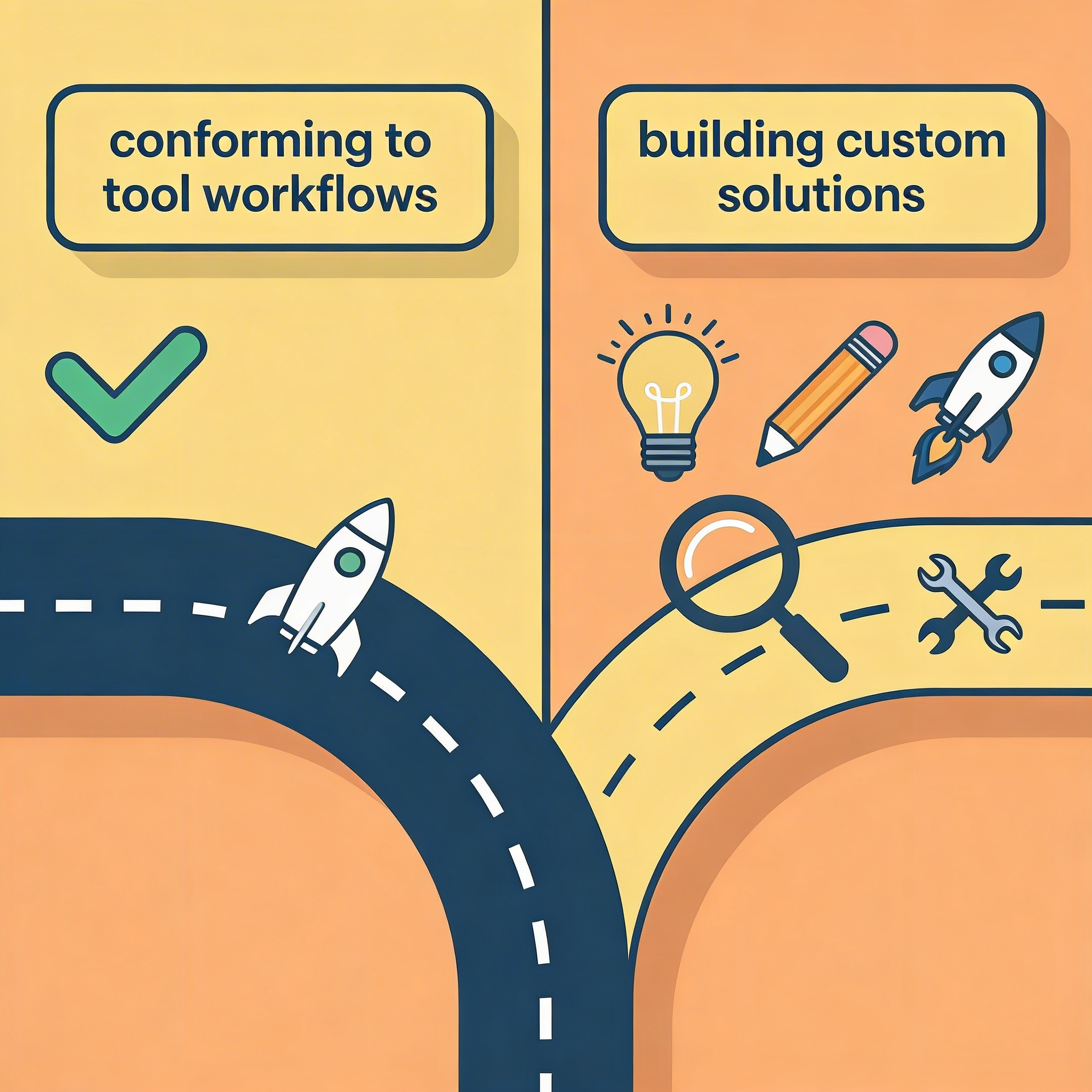
Most developers solve this by layering tools: VS Code for editing, a separate terminal for scripts, another for deployment, and a fourth for monitoring. Each tool solves one piece, but the gaps between them create friction. Context switching costs time. Manual handoffs introduce errors. The workflow becomes a series of disconnected steps instead of feeling smooth.
"Context switching costs developers an average of 23 minutes to fully refocus after each interruption." — University of California Study
Warning: Tool fragmentation doesn't just slow you down—it breaks your mental flow and increases deployment errors.
This pattern repeats across teams. You find an editor that handles Python well but struggles with TypeScript. Extensions fill gaps but slow performance. Build scripts, deployment pipelines, and testing frameworks remain separate because no single tool handles the full stack. The problem isn't the editor: traditional development tools assume you'll write every line of code yourself and manage every integration manually.

Build Tools That Fit Your Workflow
Orchids lets you describe what you want to build instead of setting up an editor. You use conversational prompts to generate full-stack applications, automation scripts, or internal tools without managing extensions or language servers. The AI handles code generation, file structure, and deployment based on your description, eliminating the resource overhead of traditional IDEs while maintaining flexibility across any language or framework.
You can import existing code, run security audits, and deploy to your own Vercel setup with custom domains. Orchids ranks #1 on the App Bench and UI Bench and works with your existing AI subscriptions, such as ChatGPT, Claude, Gemini, or GitHub Copilot, giving you control over costs and model selection without vendor lock-in.
Open Orchids, describe a small app or script you need, and generate a working version in minutes. You can build your first application for free and see how quickly you move from idea to deployment.
Bilal Dhouib
Head of Growth @ Orchids